Sell and manage your subscription services with crypto payments
Use Radom Products to represent your subscription services for sale using Radom integrations such as Payment Links or Hosted Checkouts.
The easiest way to provide access to your subscription services using Radom is by creating a Product that uses recurring payments.
When a product with recurring payments is purchased in any Radom integration, a subscription is created using the amount, currency, and interval configured on the product.
Create a subscription payment product (Dashboard)
Using the Radom Dashboard is the easiest way to create new products. Once created, you can use the product in the configuration of other Radom payment integrations.
To create a product in the Dashboard:
Navigate to and open the Product form
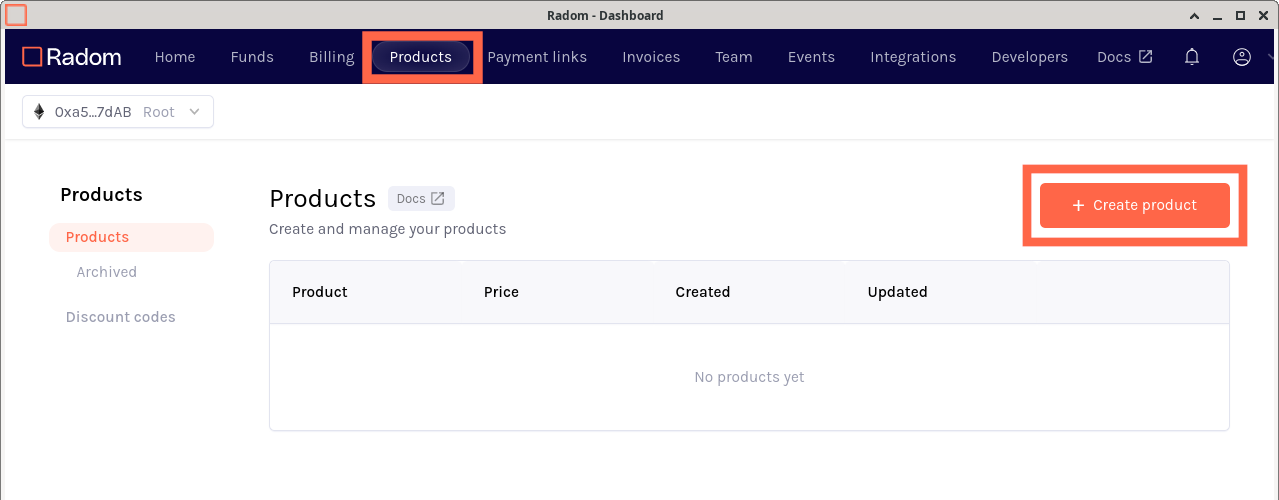
- Go to the Products tab.
- Click +Create Product.
Configure subscription payments
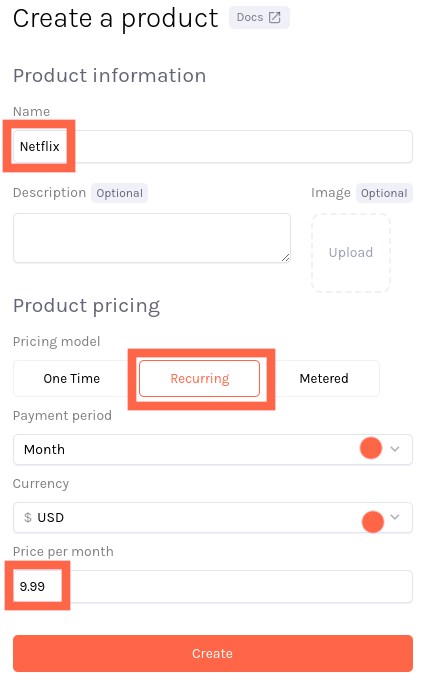
- Enter the Name of your product.
- Select Recurring under Pricing model.
Recurring pricing model must be selected in order for Radom to treat the product as a subscription.
- (Default: Per hour) Select the Payment period for the Subscription.
- (Default: USD) Select the Currency you would like to convert to when Subscription payments are made.
Radom integrations will be configured to select specific payment tokens. The value of the tokens in the selected currency will be calculated at the time of purchase using third party APIs.
- (Default: Free) Select the Price to use when payments are made on the beginning of each Payment period.
- (Optional) Add a Description.
- (Optional) Add an image to use when the product is displayed in Radom payment integrations.
Create a subscription payment product (API)
Creating an API token
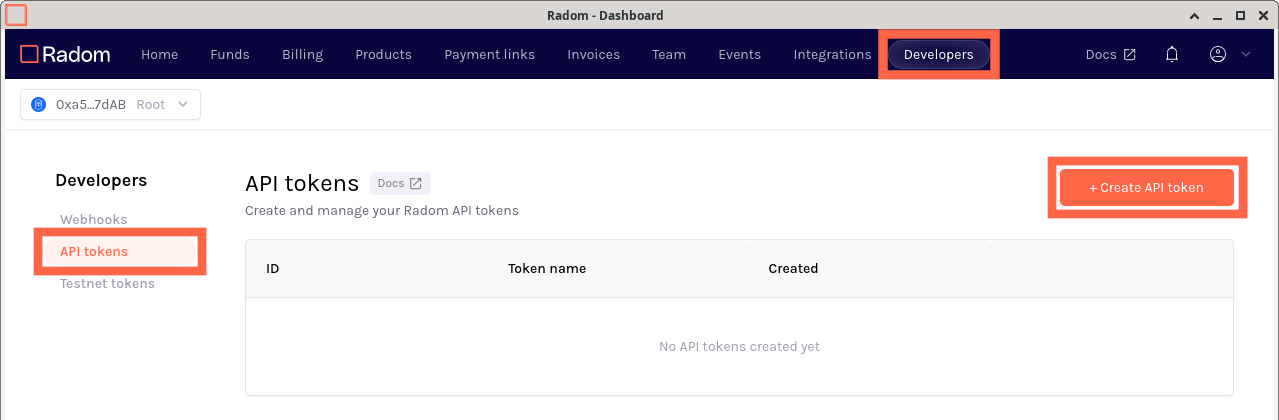
In order to create a product for use in Radom integrations using Radom API directly, first go to the Developer API tokens page in the Radom Dashboard and generate an API token. Make sure to store this somewhere securely as it can only be viewed once after creation, lost API tokens cannot be recovered and a new one will need to be generated.
Using the Products API
Refer to the Products API Reference for information on endpoints to create and update.
View, edit or archive your product
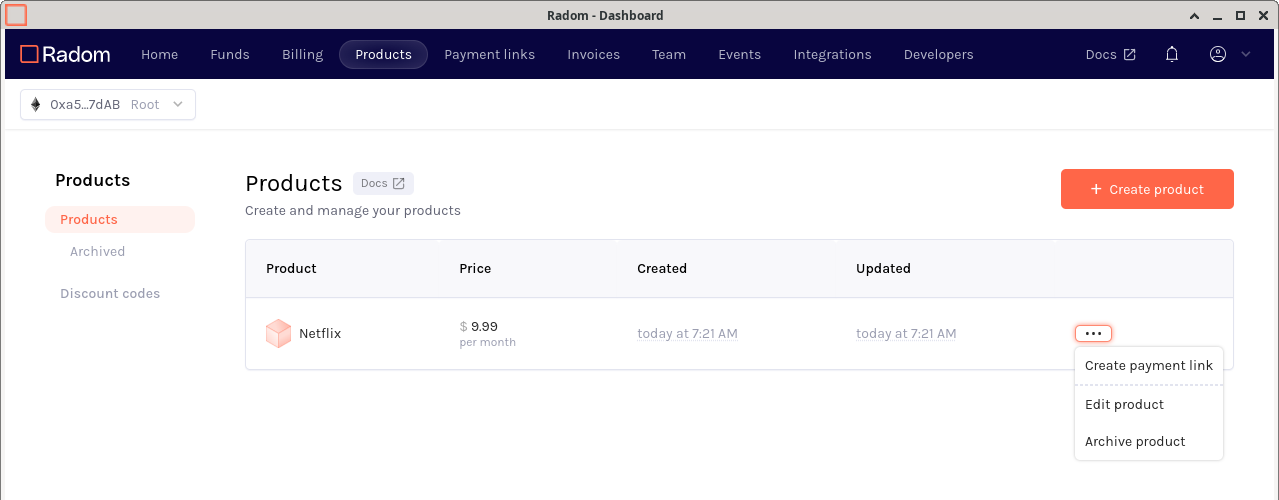
Back on the Products tab, the products created under your organization are listed. Use the menu button on the right side of the table to access editing and archiving a product.
Product pricing cannot be modified after creation.
Archiving a product removes the ability to add the product to Radom integrations.
Use the subscription payment product in Radom integrations
Now that you have created products in Radom, you can use them in these integrations:
Create a subscription with Radom Payment Link
One of the easiest to use Radom integrations is the Payment Link, which allows your product to be purchased by simply navigating to the Payment Link URL. Use the Payment Link to test your recurring purchase flow end to end.
If you would like default blockchain and payment token selections to be automatically added when creating Radom integrations in the Dashboard, you can configure them in your organization profile settings.
Radom provides testnet tokens for supported testnet payment methods so you can exercise subscription purchases in non-production environments.
Using the product menu mentioned in the previous section, select Create payment link, which pulls up Create Payment Link form with your product already filled in. Choose a chain and payment token for your subscription then create the payment link.
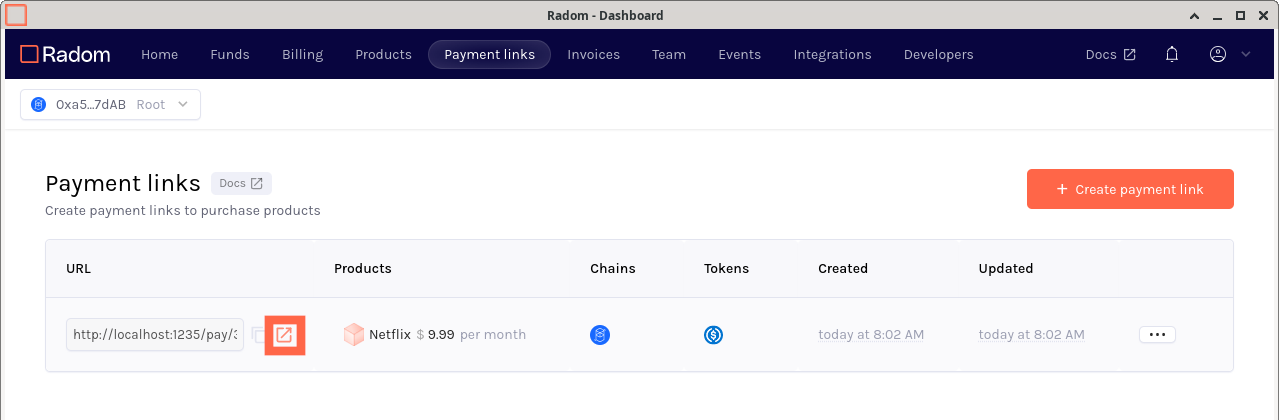
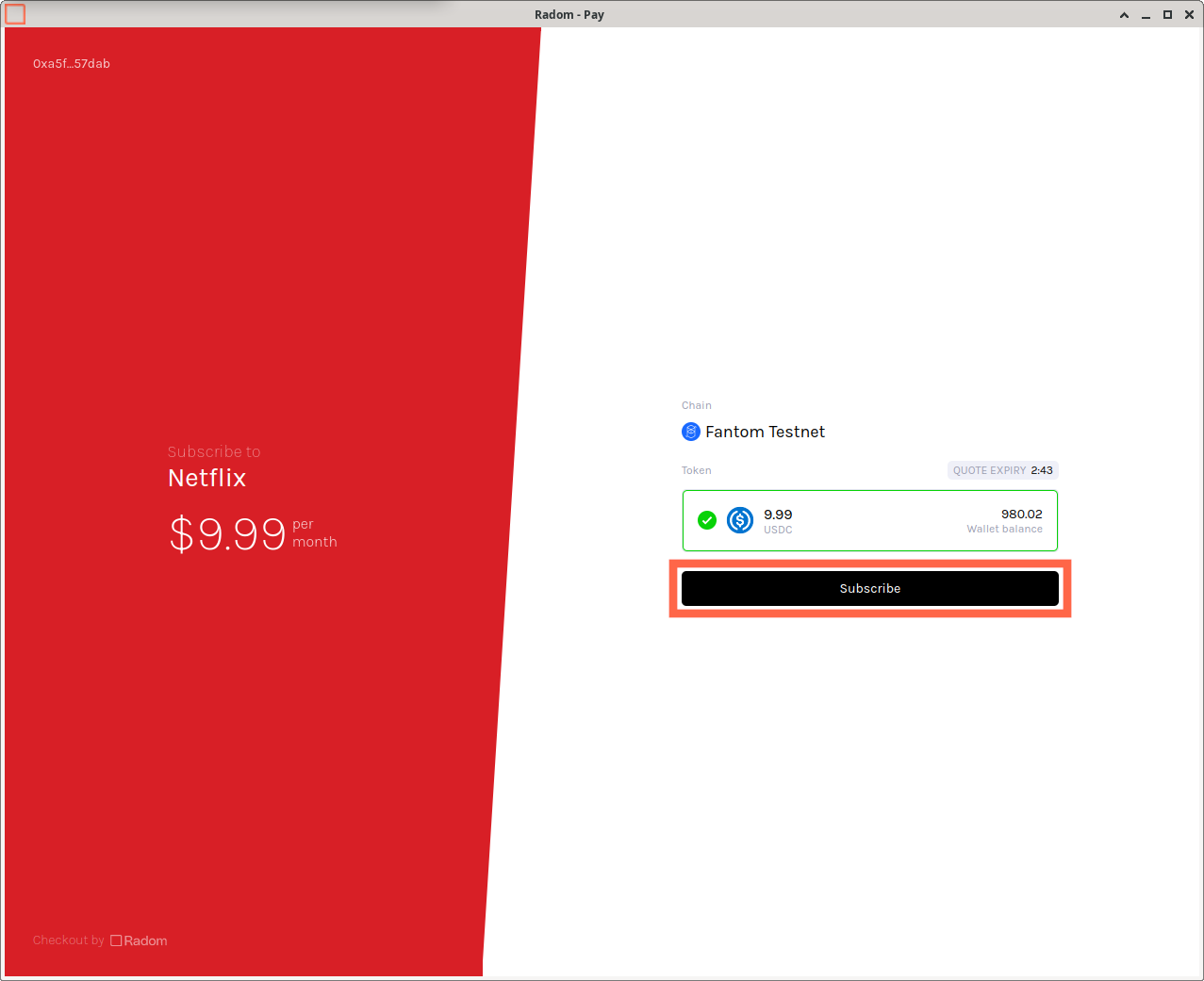
After you have created the payment link, you will automatically be redirected to the Payment links tab and should be able to see the payment link you just created for your subscription payment product. Browse to the URL generated for the payment link to view and purchase your subscription payment product.
View and manage subscriptions
When your subscription payment product has been purchased using a Radom integration, a new subscription record is created in Radom using the amount, currency, and billing interval configured on the product.
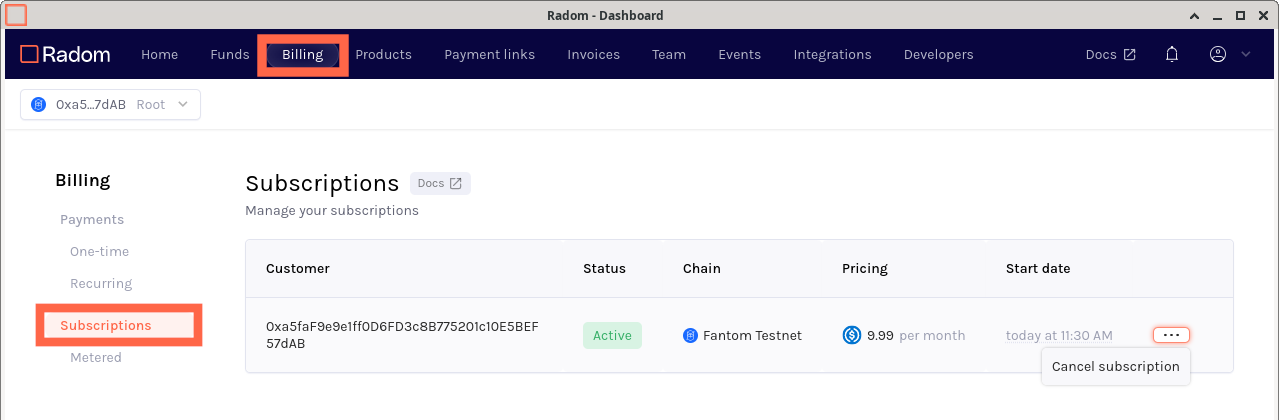
To view and cancel subscriptions, go to the Billing tab and click Subscriptions in the sidebar.
The Billing view displays both purchased and sold subscriptions.